I have learned to treat every Android update as a trust decision, not a routine tap. A real system update can improve security, fix bugs, and add useful features. A fake one can do the opposite: it can push malware onto a phone, steal permissions, and quietly expose messages, passwords, photos, and banking data. When I check an update prompt, I do not just ask whether it looks official. I ask where it came from, what it is asking for, and whether it behaves like a genuine Android update or like a trap dressed up to look familiar.
What makes a fake update so dangerous
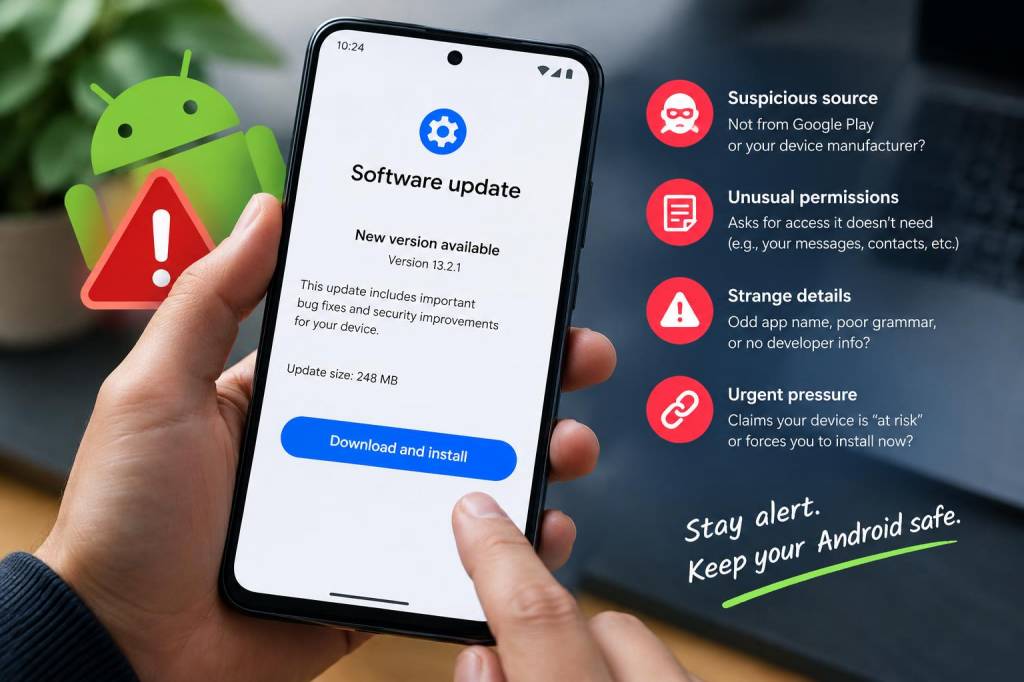
Fake updates work because they borrow trust. Most people are used to seeing update prompts from Google, their phone maker, or an app they already have installed. Attackers copy that familiar language, use similar colors and icons, and create urgency with messages like critical security patch or your device is vulnerable. If I am moving quickly, that urgency is exactly what I want to slow down and question.
Once installed, a fake update may not look suspicious right away. It may request accessibility access, device administrator privileges, notification access, or permission to draw over other apps. Those permissions are often more important than the app itself, because they let malware read what I type, intercept codes, hide itself, or prevent removal. In many cases, the danger is not a dramatic instant infection. It is a quiet takeover.
Signals I check before tapping install
My first habit is simple: I check whether the update appears inside a trusted system path. On Android, genuine system updates usually appear in Settings under System, Software update, or a manufacturer-specific update menu. If a pop-up appears in a browser, a random web page, a text message, or a social post, I treat it as suspect immediately.
I also look at the wording. Fake prompts often include poor grammar, strange capitalization, or awkward pressure. A real update notice from Google, Samsung, Pixel, or another trusted vendor usually reads like a polished product message. If I see lines such as install now to avoid data loss or your phone is infected, click here, I slow down. Legitimate update systems rarely use panic language.
Another thing I check is whether the update is asking me to install an APK file from outside the Play Store or the system updater. If I did not actively seek a developer tool, a beta package, or a manufacturer utility, I usually stop there. Sideloading is not always malicious, but it is a common delivery method for malware disguised as software updates.
Red flags I never ignore
Over time, I have built a mental checklist. If one or more of these signs appears, I assume the update may be fake until I verify it from a trusted source:
- The prompt appears in a browser tab instead of in device settings.
- The message asks me to disable Play Protect or security warnings.
- The file extension is .apk and I did not expect to install one.
- The app asks for accessibility, SMS, or administrator access before doing anything useful.
- The update page uses logos that look blurry, slightly wrong, or outdated.
- The download comes from a domain that does not match the brand name.
- The prompt says my phone is already infected and needs an immediate fix.
- The update offers unrelated rewards, coupons, or gift cards as a lure.
What matters most is not any single clue, but the pattern. A fake update usually mixes technical claims with social pressure. It wants me to act before I verify.
Where I verify an update before trusting it
If I am unsure, I go directly to the source. I do not follow links in pop-ups or messages. Instead, I open the official settings menu on the phone and check for updates there. If the device maker has its own update utility, I launch that app from the phone itself, not from a link. For Google-related updates, I check official Android documentation or device support pages.
I also compare what I see with the brand’s real behavior. A proper update usually shows version details, patch dates, and a clear installation path. It does not force me into a new website that demands extra permissions. If a page asks me to sign in again, download a security app I never heard of, or enable installation from unknown sources, I stop and verify through another channel.
When I am helping someone else, I often remind them to ask a basic question: Would this update still make sense if I ignored the urgency? If the answer is no, I assume the message is trying to manipulate me.
Permissions that make me pause
One of the most useful things I do is inspect permissions before any install. A fake update may ask for access that has nothing to do with updating a phone. That mismatch is often the clearest warning sign. A browser-based prompt that wants SMS access, call logs, accessibility control, or notification reading is not behaving like a normal software update.
I pay special attention to accessibility permission because it is so powerful. Malware can use it to click buttons, read content on screen, approve further permissions, or capture what I type. If an app claims to be a patch but immediately asks for accessibility access, I treat that as highly suspicious. The same goes for device administrator rights, which can make removal much harder.
| Signal | What I look for | My reaction |
|---|---|---|
| Source | Settings menu, official updater, trusted app store | Proceed with caution |
| Source | Browser pop-up, message link, random web page | Stop and verify |
| Permissions | Standard update access and normal system behavior | Low concern |
| Permissions | Accessibility, SMS, device admin, overlay access | High concern |
| Language | Clear version details and patch notes | More believable |
| Language | Panic, threats, or immediate payment demands | Likely malicious |
Security settings that help me stay ahead
I do not rely on instinct alone. I use Android security settings to reduce the chance of a fake update ever reaching me. I keep Google Play Protect enabled, because it adds a useful layer of scanning for suspicious apps. I also keep install unknown apps disabled for browsers, messaging apps, and file managers unless I have a specific reason to allow it temporarily.
Automatic updates matter too. A genuinely up-to-date phone is harder to exploit, which reduces the chance that a fake update becomes attractive in the first place. I also review which apps can send notifications. Many scam campaigns depend on a rogue app spamming fake alerts. If an app does not need to interrupt me, I remove its notification rights.
I check the device’s list of installed apps from time to time, because malware often hides behind generic names such as System Update, Phone Service, or Security Center. If I do not recognize an app and it appeared around the same time as a suspicious prompt, I investigate immediately. A misleading icon or name is not proof of malware, but it is enough reason to look closer.
What I do if I already tapped the fake update
If I realize I installed something suspicious, I do not wait to see what happens. I disconnect from Wi-Fi and mobile data if the app seems active, then I remove network access from the suspicious app if I still can. Next, I check whether the app has administrator or accessibility privileges and revoke them before trying to uninstall it. If uninstalling is blocked, I boot into safe mode and remove it there if possible.
After that, I change important passwords from a clean device, starting with email, banking, cloud storage, and social accounts. I also review recent logins and revoke sessions that I do not recognize. If the fake update involved a banking app, I contact the bank directly using an official number or app already known to be legitimate. For serious infections, I prefer a full backup of personal data followed by a factory reset, because stubborn malware can survive half measures.
I also watch for signs that credentials may have been exposed: odd login alerts, missing messages, unexpected account recovery emails, or new device sessions. A fake update does not always announce itself immediately, so follow-up matters just as much as the first reaction.
Questions I hear most often
Can a fake update appear inside a real app store? Sometimes attackers create lookalike apps or abuse ads and web views, so store presence alone is not enough. I still check the developer name, download count, reviews, and required permissions.
Do phone makers ever send updates by message? They may notify me that an update exists, but I still prefer to open the official settings menu myself. I never install from a text link without verifying independently.
Is every APK unsafe? No, but any APK outside a trusted source deserves careful scrutiny. I ask why I need it, who published it, and whether the signature and source make sense.
What is the single most important habit? I would say it is refusing to install anything from a prompt that creates fear or urgency. Real security updates do not need panic to earn trust.
My rule is simple: I trust software updates only after I verify where they came from, what permissions they want, and whether their behavior matches a real system process. That habit has saved me from clicking first and thinking later, which is exactly what fake updates depend on.