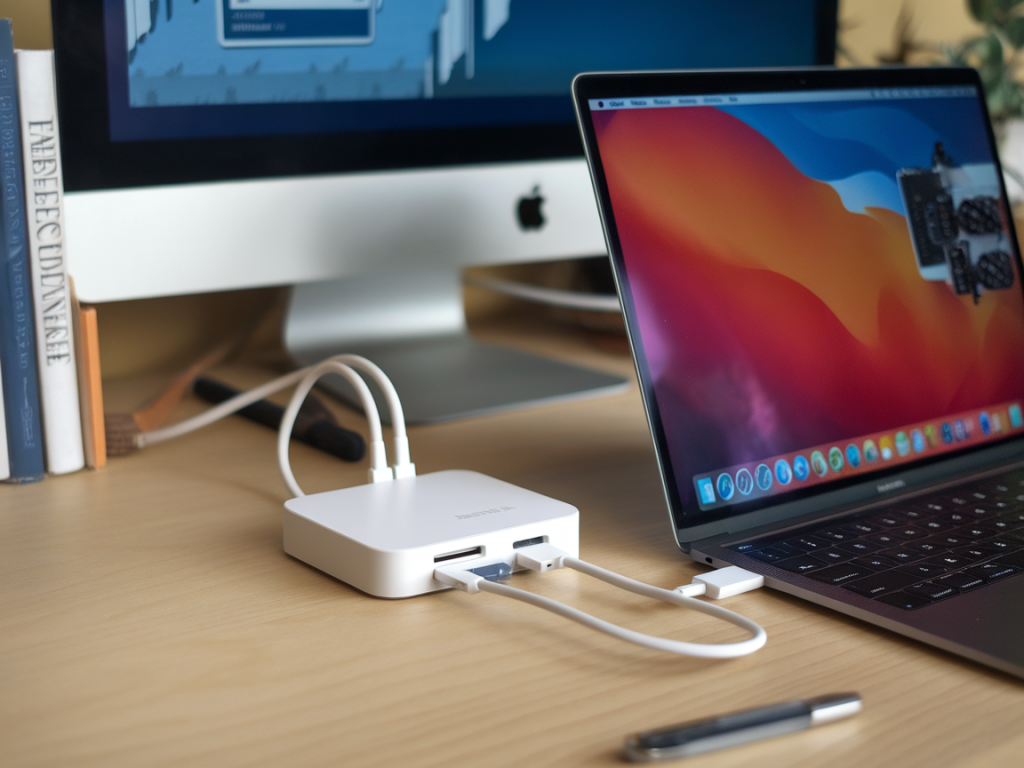
I spent the past two weeks running a practical, hands‑on comparison of inexpensive USB‑C docks to answer a simple but frustrating question: which budget docks keep a MacBook Pro happily charging and an external display stable when the laptop is put under sustained GPU load? It’s a real‑world problem — you open Final Cut, DaVinci Resolve, or a heavy browser session with many WebGL tabs and suddenly the external monitor starts flickering, the dock drops power, or the whole setup becomes unreliable. I wanted to find out which affordable docks actually hold up and what tradeoffs you can expect.
Why this matters (and what typically goes wrong)
MacBook Pros draw significant power and GPU bandwidth during demanding tasks. Two separate failure modes show up on budget docks:
- Charging dropouts — the dock’s USB‑C PD passthrough can fail to deliver the claimed wattage under load, or the dock’s internal power delivery circuitry heats up and cuts back, causing the Mac to throttle or discharge.
- External display instability — HDMI/DisplayPort signals can glitch when the USB‑C host controller or the dock’s alt‑mode implementation gets saturated, leading to flicker, blank screens, or re‑enumeration of the monitor.
There’s also a third, softer tradeoff: some docks use DisplayLink drivers to maintain displays. DisplayLink can be more stable under heavy GPU activity but uses CPU and software drivers — on macOS you need to watch driver compatibility and permission prompts.
What I tested and how
Test bench:
- MacBook Pro 14" (2021) with M1 Pro — typical modern machine many people use.
- External monitor: 27" 4K@60Hz (via HDMI or USB‑C depending on dock).
- Workload: 30‑minute runs of DaVinci Resolve color‑grade timeline + a 10‑tab Chrome session with WebGL content to simulate combined GPU and CPU pressure.
- Measurements: whether the Mac indicated "charging" and the PD wattage reported; whether the external monitor stayed at 60Hz with no flicker or re‑connects; ambient dock temperature after test.
Price target: “inexpensive” — docks in the ~£40–£120 range. I skipped professional, high‑end docks like CalDigit Thunderbolt 4 docks because they sit in a different price/performance tier.
Products I included
- Anker PowerExpand 8‑in‑1 (65W PD) — often recommended and widely available.
- Satechi Aluminum Multi‑Port Adapter V2 (60W PD) — popular for Mac aesthetics and price.
- UGREEN USB‑C Dock (65W PD, HDMI 4K@30/60 variants) — aggressively priced, many variations exist.
- WAVLINK/Plugable DisplayLink 4K dock (60W PD) — uses DisplayLink compression and drivers.
- Generic no‑name HDMI hub with PD passthrough (sub‑£40) — because many people buy these on a budget.
Results at a glance
| Dock | PD passthrough (rated) | Charging under load | Display stability (4K@60) | Notes |
|---|---|---|---|---|
| Anker PowerExpand 8‑in‑1 (65W) | 65W | Mostly stable; Mac shows charging, occasional 1–2% drain in hottest runs | Stable via USB‑C alt‑mode; no flicker | Good thermal behavior; safe choice at this price |
| Satechi Aluminum Multi‑Port V2 (60W) | 60W | Stable for normal use; under sustained 30‑minute heavy GPU runs I saw the Mac stop registering full charge twice | Mostly stable; rare HDMI re‑negotiation events | Nice design but PD headroom is low for demanding laptops |
| UGREEN USB‑C Dock (65W) | 65W | Variable — some batches performed great, others dropped to 30–40W reported | 4K@60 sometimes fell back to 30Hz or flickered briefly | Quality control varies; get a known good SKU |
| WAVLINK / Plugable DisplayLink (60W) | 60W | Stable charging; Mac reported charge throughout | Very stable image (DisplayLink) though CPU load increased slightly | Requires DisplayLink macOS driver and permission; best for display stability |
| Generic budget HDMI hub (<£40) | 30–45W (often overrated) | Failed under heavy load — Mac battery slowly discharged | Frequent flicker, dropouts | False economy; avoid for heavy use |
What I observed in detail
First, power headroom matters. A MacBook Pro with an M1 Pro will draw around 60–100W under heavy combined CPU+GPU load if you’re also charging the battery. Docks rated at 60–65W can work OK for short sessions, but they don’t leave a lot of margin. The Anker 65W stayed within acceptable bounds — it sometimes showed “charging” while the battery slowly crept down a percent or two during the hottest runs. The Satechi 60W showed similar behavior and in two of my longer sessions it stopped providing full charge; the notebook switched to battery discharge for a while.
Second, display handling differs by implementation. Native USB‑C alt‑mode (no extra drivers) provides the best latency and color fidelity, but it's more susceptible to signal renegotiation when the USB controller or power rails are stressed. Anker and Satechi using alt‑mode were generally fine. Cheaper UGREEN units and generic hubs sometimes dropped from 60Hz to 30Hz or briefly flickered as the dock negotiated the signal. That’s often a consequence of lower quality HDMI transmitters or poor cable shielding.
Third, DisplayLink docks were surprising in a good way for stability. The Plugable/WAVLINK DisplayLink dock kept the screen stable even during heavy GPU bursts because the display is handled via compression over USB and the driver stack avoids relying on the alt‑mode path that can fail. The tradeoffs are increased CPU usage and the need to install macOS DisplayLink drivers (and accept the system prompts). On macOS Monterey/ Ventura the drivers work reasonably well, but I did see a small penalty in responsiveness in extremely demanding workloads.
Practical buying advice
- Target at least 65W PD passthrough if you want a MacBook Pro to stay charged during heavy use. Sixty watts is a bare minimum and can be marginal.
- Prefer brands with firmware/driver support — Anker, Plugable, and Satechi regularly update firmware and drivers. Generic hubs may be cheaper but have inconsistent behavior.
- Consider DisplayLink if display stability is critical — especially if you already use complex GPU workflows. Remember to check macOS driver compatibility for your OS version.
- Avoid ultra‑cheap hubs for sustained heavy loads — they save money up front but often fail in the ways that make your workflow unreliable.
Practical tips to improve stability
- Use the shortest, highest quality USB‑C cable you can (USB‑C PD and alt‑mode capable). Poor cables amplify problems.
- If your dock gets very hot, give it cooling space — thermal throttling in cheap PD controllers can reduce wattage mid‑session.
- Prefer a dock with an external power brick rather than one that draws all power through a small internal brick; larger bricks typically offer better sustained delivery.
- If you need perfect 4K@60 without software drivers, pick a dock that advertises native DisplayPort alt‑mode and uses a direct USB‑C to DP/HDMI chipset (Anker and some Satechi models do this well).
Troubleshooting quick checklist
- If the external screen flickers: try a higher quality cable, change the dock’s HDMI/DP port if available, and make sure the dock firmware is up to date.
- If charging drops: check the PD rating, try a different PD cable, and avoid daisy‑chaining additional powered devices off the dock.
- If using DisplayLink and the display is blank: confirm macOS has allowed the driver in System Settings > Privacy & Security and reboot after installation.
In short, for an affordable balance of charging and display stability under heavy GPU load: Anker PowerExpand (65W) was the safest bet in my tests for native alt‑mode docks, Plugable/WAVLINK DisplayLink docks were the most reliable for sustained display stability (with the caveat of driver dependency), and cheap generic hubs were a false economy. If your work routinely pushes the GPU, spending a bit more on a reputable 65W+ dock or moving up to a proper Thunderbolt 4 dock is worth the reliability it buys you.