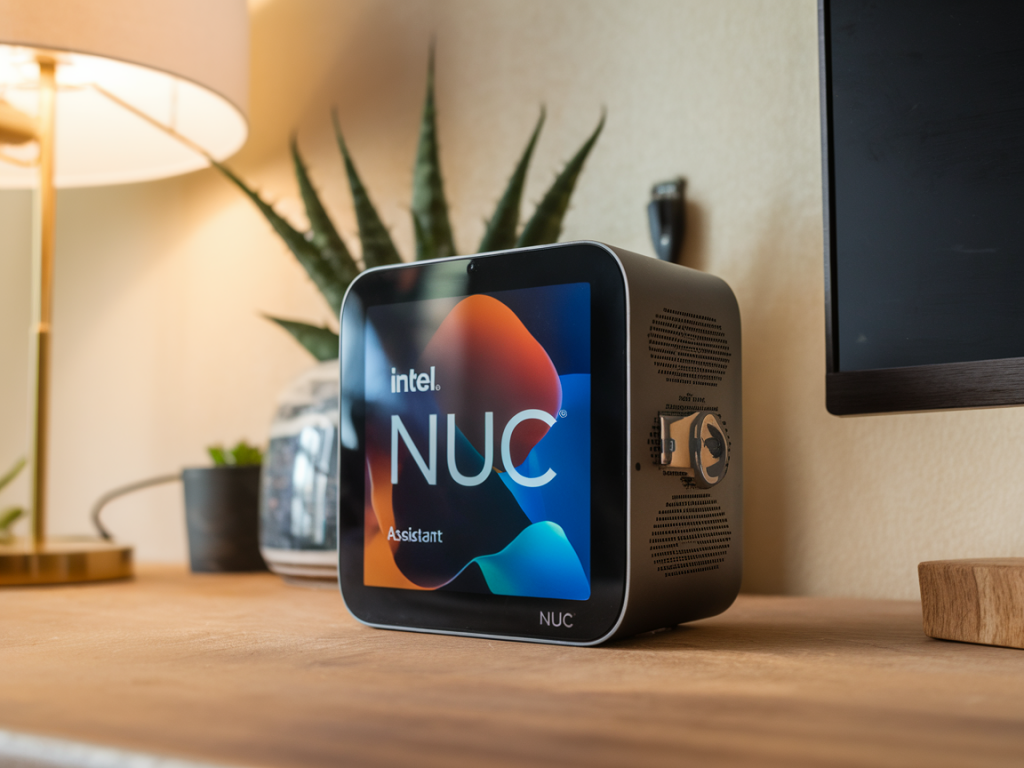
I run a private GPT-style assistant at home on an Intel NUC because I wanted low latency, full data control and predictable running costs. Over the past year I iterated on hardware, models and deployment patterns until I hit a sweet spot: sub-second response times for short prompts, multi-second but usable answers for longer generations, and monthly costs that are basically power + occasional SSD replacements. Below I walk through what worked for me and why — from picking the right NUC through model choices, quantization, runtime, and practical tips to keep latency and cost low.
Why an Intel NUC?
Intel NUCs are compact, energy-efficient and surprisingly capable. They make a great host for on-prem inference because:
They’re quiet and small enough to sit on a bookshelf or in a closet.They consume far less power than a full desktop or server.Recent models (12th/13th gen and NUC Extreme) have strong CPUs, good memory capacity and sometimes discrete GPUs or fast integrated graphics (Iris Xe).That said, a NUC is not a GPU server. The approach that gives the best cost/latency balance for me uses CPU-friendly quantized models and efficient runtimes rather than trying to run huge floating-point models on limited GPUs.
Choose the right NUC and components
For a private assistant optimized for low latency and low cost, here’s the hardware I recommend:
CPU: 12th/13th Gen Intel i7 or i9 (more E/E-core threads helps). Higher single-thread performance helps many inference runtimes.RAM: 32 GB minimum. 64 GB is ideal if you want to run multiple models / larger quantized weights.Storage: NVMe SSD (1 TB) — model weights and mmap performance matter. Fast random I/O improves load times.Optional GPU: If you get a NUC with a discrete GPU (or an external GPU), you can use fused FP16 runtimes with faster generation, but it’s optional.My current build: NUC 13 with i7, 64 GB RAM, 1 TB PCIe 4 NVMe. It’s silent enough for my apartment and draws ~30–40W under typical loads.
Pick a model that matches your constraints
“GPT-style” covers a lot. For local private use, pick a model family that has strong performance at quantized sizes:
Llama 2 (7B/13B): Good quality; many quantized variants exist (4-bit, 3-bit).Mistral / Mistral 7B Instruct: Competitive quality, efficient.Alpaca-like fine-tuned LLaMA variants for instruction following, if you want a more assistant-like style without additional fine-tuning.I typically run a 7B or 13B quantized model with 4-bit or 3-bit weights. This balances quality with memory and latency. A 7B quantized model often fits comfortably in 32–64 GB RAM and offers fast responses.
Use efficient runtimes and quantization
Latency and cost pivot mostly on runtime and quantization. My stack choices:
llama.cpp / ggml: Great for CPU inference with quantized weights (q4_0, q4_k, q8_0, q3_k). Very low memory footprint and surprisingly fast on modern CPUs.GGML quantized weights: Use tools like gguf or quantization scripts provided by model repos to convert weights to 4-bit or 3-bit ggml files.ggml + Mmap: Memory-map the model file to avoid full RAM load and speed startup.cTranslate2 or ONNX Runtime: Alternatives for some models, especially if you have a small GPU.Typical workflow:
Download base model from Hugging Face (FP16/FP32).Run the quantization script to create ggml q4_0 or q3_k models.Load with llama.cpp (or a wrapper like llama.cpp server) and enable memory mapping and thread tuning.Practical setup — commands and tuning
High-level steps I use (assume a Linux NUC):
Install dependencies (build tools, cmake, python).Clone and build llama.cpp or your runtime of choice.Quantize a model or download pre-quantized ggml models when available.Start a small HTTP/gRPC server that wraps the runtime (there are lightweight servers like llama.cpp’s server, text-generation-webui, or a tiny FastAPI wrapper).Important tuning flags I use with llama.cpp:
Set number of threads to number of physical cores or experiment with fewer to reduce contention (e.g., 8–12 threads).Enable mmap for model load to reduce memory pressure.Adjust context window size — larger windows increase memory and CPU usage.Use sampling parameters that balance speed vs quality (top-p, temperature). For faster results, reduce steps and use a smaller max_tokens.Latency and throughput tricks
To keep latency low:
Keep models small enough to fit in RAM when quantized so generation is CPU-bound, not I/O-bound.Warm up the model (run a short prompt) so the process and caches are hot.Prefer shorter prompts and incremental generation. For chat, send rolling context rather than the entire transcript when possible.Use batched requests sparingly; single-user low-latency scenarios benefit from dedicated single-request handling.Security, privacy and maintenance
I run my assistant behind a local firewall and a simple reverse proxy (Caddy or Nginx) with basic auth and TLS when exposing to local network. Key practices:
Keep the NUC on a private LAN segment if you expose an HTTP API to other devices; avoid direct port-forwarding to the internet.Use disk encryption for the SSD if you’re worried about physical theft.Regularly update the runtime and OS. Reproducible builds and pinned versions reduce surprise breakage.Back up model files and configuration — re-downloading large weights can be slow.Cost and power considerations
Running a NUC 24/7 is inexpensive relative to cloud GPU instances. Typical monthly costs:
| Item | Monthly cost estimate |
| Electricity (30–50W avg) | £3–£6 (depending on local rates) |
| Occasional SSD replacement / depreciation | £1–£5 |
| Internet / incidental | £0–£2 |
Compare that to cloud GPU inference where a single 8-hour run can cost several pounds or tens of pounds depending on instance type. For always-on, the NUC is way cheaper.
When to consider a GPU or cloud hybrid
If you need near-instant generation for long, complex prompts or multi-user throughput, a desktop/server with an RTX 40 series GPU or an on-demand cloud GPU can be justified. I use a hybrid approach:
NUC handles day-to-day short assistant tasks and private data.For heavy research tasks or long-context generation I temporarily spin up a cloud GPU instance (spot instances if cost-sensitive), run the job, then shut it down.This keeps my average cost low while giving me burst capacity when needed.
UX and integrations
To make the assistant useful I integrate with local tools and automations:
Shortcuts on my phone that POST to the NUC API for quick queries.Desktop helper apps that call the local server for summaries, note-taking, code snippets.Local file access handlers (careful with privacy) so the assistant can search or summarize local docs without sending them to the cloud.Think of the assistant not as a replacement for cloud AI but as a privacy-friendly, low-latency tool for everyday tasks and sensitive workflows.
If you want, I can share the exact commands I use to build llama.cpp, quantize a model, and run a small HTTP wrapper — or help pick a NUC SKU based on your budget and latency targets. I’ve iterated through several builds and can lay out a checklist tailored to what you want the assistant to do (coding help, chat, summarization, home automation, etc.).