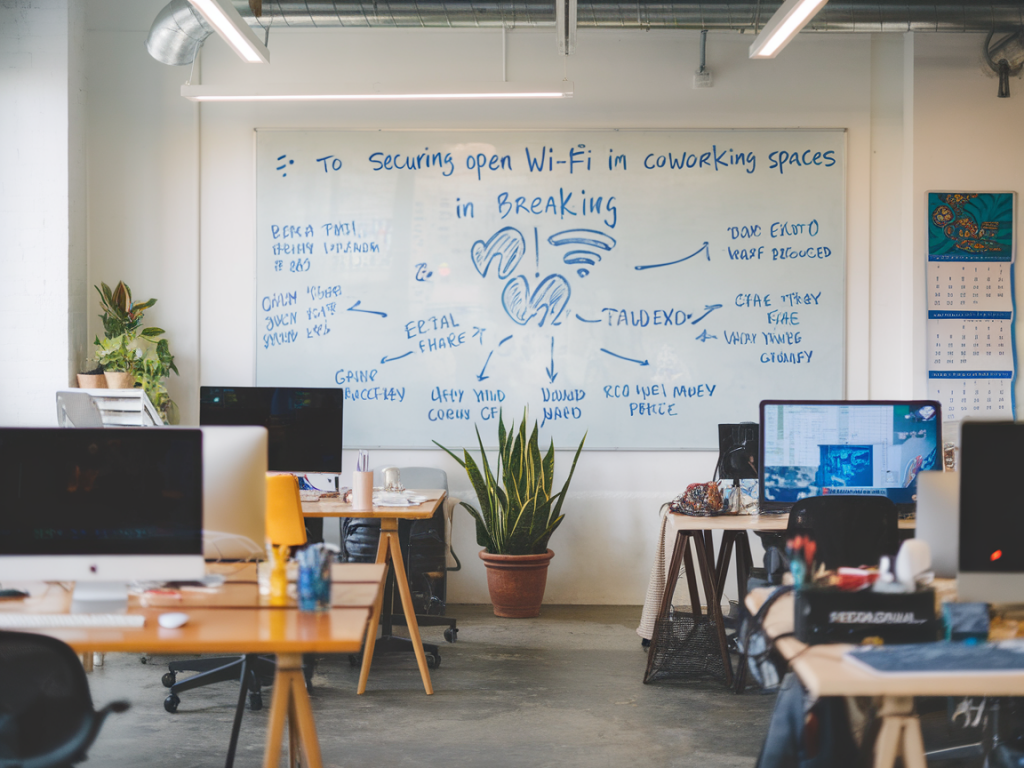
I spend a lot of time working from coffee shops, libraries and coworking spaces, and one question keeps coming up from readers, founders and friends: how do you secure devices and data on an open Wi‑Fi network without turning every connection into a fortress that destroys usability? In this hands‑on guide I walk through the practical steps I use to protect myself and my team in shared spaces. No theoretical laundry list — just workable controls, tradeoffs and quick checks you can apply right now.
Why open Wi‑Fi is risky (but not always catastrophic)
Open Wi‑Fi in coworking spaces is convenient: you join, you’re online. But that convenience means anyone on the same network can potentially eavesdrop, spoof traffic, or attempt device‑level attacks. Common threats include:
- Passive eavesdropping — unencrypted HTTP traffic or metadata can be observed.
- Man‑in‑the‑middle (MitM) attacks — an attacker can intercept or modify traffic, especially if certificate validation is lax.
- Rogue hotspots and evil twins — malicious actors create access points with similar SSIDs to trick you into connecting.
- Lateral movement — compromised devices on the same network can probe and attack other devices.
That said, most modern services use HTTPS and other application‑level encryption, which mitigates many passive threats. The pragmatic goal is to make attacks costly and avoid common pitfalls without turning every meeting into an IT project.
Principles I follow
- Encrypt in layers: use application‑level encryption (TLS), plus a transport layer (VPN) when appropriate.
- Minimize exposure: keep services closed to local networks and avoid file sharing when on public Wi‑Fi.
- Authenticate strongly: prefer MFA and strong passwords to reduce the impact of intercepted credentials.
- Maintain usability: select tools and configurations that are lightweight and won’t disrupt client connections or calls.
Quick checklist to apply before you connect
- Verify the network name with staff — avoid networks with generic names like "Free WiFi".
- Ensure your OS and applications are updated (patches close many remote‑exploitation paths).
- Disable network sharing and automatic file sharing: stop Windows file sharing, macOS File Sharing and AirDrop set to "Contacts Only" or off.
- Turn off automatic connection to open networks in your Wi‑Fi settings.
Practical authentication and encryption options
Here are the main approaches I choose between depending on context:
- HTTPS + modern apps: For browsing, email and most SaaS, end‑to‑end TLS (HTTPS) is sufficient. I confirm sites show valid certificates and avoid entering sensitive data on HTTP pages.
- WPA3 Enterprise (ideal for coworking operators): When available, WPA3‑Enterprise provides per‑user authentication and strong encryption. If you run a space, enable it; as a user, prefer spaces that offer it.
- Personal VPN: My go‑to for added privacy. A reputable VPN (NordVPN, Mullvad, ProtonVPN, or a company VPN) encrypts traffic and hides metadata from local observers. Use a kill switch to avoid leaks if the VPN drops.
- Strict host‑based protections: Firewalls, endpoint detection, and OS hardening reduce attack surface.
When to use a VPN — and when not to
I use a VPN by default in unfamiliar or high‑risk spaces (hackathons, large conferences, dense coworking rooms). Benefits are clear: it encrypts non‑TLS traffic and prevents local observers from seeing your DNS queries if the VPN also handles DNS.
But a VPN isn’t always necessary. If I’m using only well‑secured SaaS with MFA (Google Workspace, Slack, GitHub) and the site uses HSTS/HTTPS, the incremental benefit is smaller. VPNs can also introduce latency or block local network devices like printers — consider split tunneling if you need local resources.
Device configuration: practical settings I change
- OS firewall: Enable the built‑in firewall (Windows Defender Firewall, macOS Application Firewall) and restrict inbound connections on public networks.
- Private vs public Wi‑Fi profile: Mark networks you trust as "Private" and set coworking spaces to "Public" unless you control the network.
- Disable SMB and other local file services: Don’t expose file shares to the local network.
- Use a modern browser and enable HTTPS‑only mode: Chrome, Edge and Firefox can be configured to block insecure HTTP.
- Harden DNS: Use DoH/DoT (Cloudflare 1.1.1.1, Google 8.8.8.8, Quad9) to avoid plaintext DNS leakage when not using a VPN.
Protecting credentials and sessions
Passwords and session tokens are what attackers want most. My habits:
- Enable 2FA everywhere — preferably using an authenticator app or hardware keys (YubiKey, Titan Security Key) rather than SMS.
- Use a password manager (1Password, Bitwarden) so I can generate unique strong passwords and auto‑fill without typing in public.
- Log out of sensitive sessions when done, especially on shared or ephemeral devices.
Handling file sharing, printers and local devices
Sometimes you need to print or share a file locally. My approach:
- Prefer cloud‑based sharing links with time limits and passwords over local SMB/CIFS shares.
- When printing, use a secure print queue if available or email the document to the print service rather than connecting directly to a printer.
- If you must enable local discovery (AirDrop, network printers), toggle it on only briefly and turn it off immediately after.
Detecting suspicious networks and activity
I keep an eye out for anomalies:
- If multiple networks share the same SSID, ask staff which is legitimate.
- Watch for captive portals that request unusual permissions or ask you to install a certificate — that's a red flag.
- Use a simple network scanner (Fing, nmap) occasionally to see what devices are visible. If you see many unknown devices with open services, treat the environment as higher risk.
Tools I use and recommend
| Problem | Tool | Why |
|---|---|---|
| VPN | Mullvad / ProtonVPN | Strong privacy policies, simple clients, kill‑switch options |
| Password & 2FA | Bitwarden + YubiKey | Cross‑platform password management + hardware MFA |
| Network visibility | Fing / Fing Desktop | Quick scan of local devices and open ports |
| DNS privacy | Cloudflare 1.1.1.1 app | Easy DoH setup on mobile |
Operational tips for teams and coworkers
If you run a distributed team that uses coworking spaces, put these practices in your onboarding checklist:
- Require device encryption (FileVault for macOS, BitLocker for Windows) and screen lock policies.
- Use company VPN for accessing internal resources and require MFA for admin access.
- Share a simple, one‑page “coworking Wi‑Fi” guide summarizing what to do and what to avoid (prints, file shares, captive portal pitfalls).
Securing open Wi‑Fi in coworking spaces is about balancing risk and productivity. You don’t need to be paranoid — you need to be practical. Layer sensible protections (TLS, VPN when needed, updated devices, MFA) and adopt small habits that dramatically reduce your attack surface. If you want, I can publish a printable one‑page checklist you can hand to teammates or pin in your space — say the word and I’ll prepare it.