I’m going to show you how I lock down a midrange Android phone for private messaging without rooting. The goal is practical: make it hard for casual snoops, resilient against common app-level leaks, and preserve strong cryptographic privacy for messages—without tinkering with the bootloader or installing a custom ROM. I’ll walk through settings, app choices and workflows I actually use and test, and explain the tradeoffs so you can decide what matters for your threat model.
What "lock down" means here
When I say “lock down,” I mean reducing attack surface and information leakage while keeping the phone usable. That includes:
We’re not preventing a nation-state with physical access from extracting everything—without rooting or a hardened ROM that’s not possible on many midrange devices—but we can make mass surveillance and opportunistic attacks much harder.
Pick the right apps (it’s the biggest win)
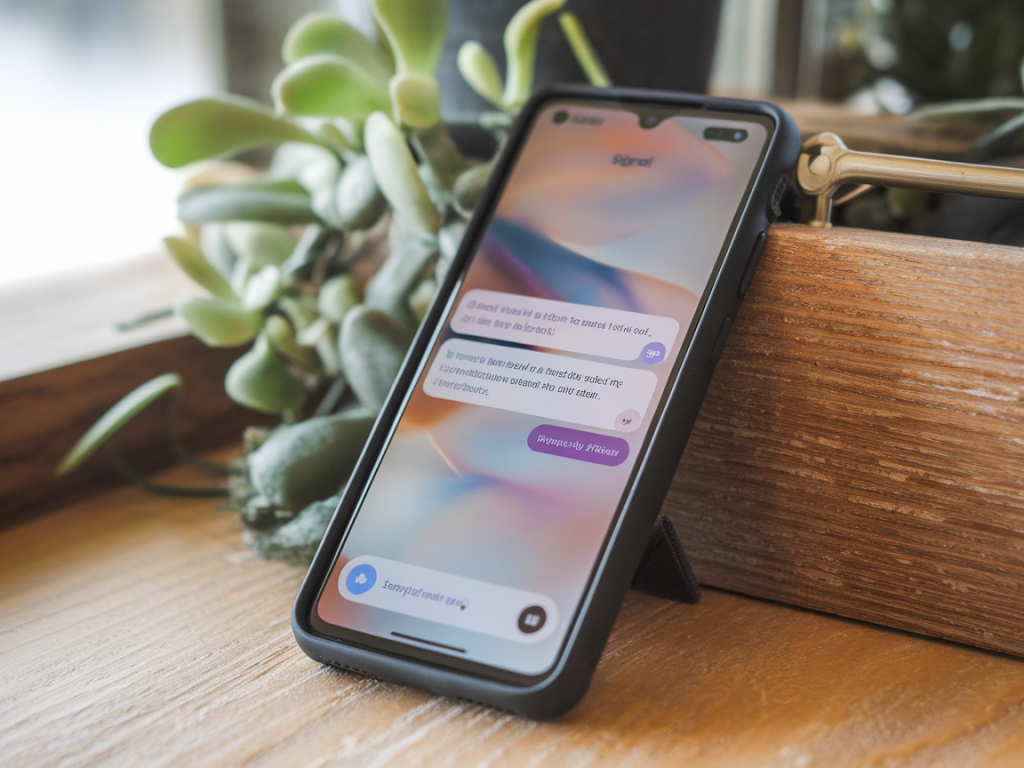
Start with messaging apps designed for privacy. My go-to is Signal for most private conversations—strong E2EE, open-source, minimal metadata policies. For metadata-anonymous messaging I sometimes recommend Session or Bridgefy in very specific offline scenarios, but Signal covers 90% of private chats.
Key Signal settings to use:
Other useful secure choices:
Harden the device: lock screen, encryption, SIM
Before installing apps I secure the device:
Biometrics are convenient but consider adding them as a secondary method rather than the only lock—fingerprints can sometimes be coerced or spoofed.
Minimise system and app permissions
Permission hygiene matters. On a midrange phone I systematically audit permissions:
Use the “Permission manager” to see which apps have access to sensitive categories and set them to “Only while in use” or “Deny”.
Network controls without root
Blocking background network access significantly reduces metadata leaks. On unrooted Android I use the following:
Work profile and app isolation
One powerful technique that doesn’t require root is using a work profile to isolate apps. I use Shelter (F-Droid) to create a Work Profile and clone apps into it. Benefits:
Put all messaging apps that handle sensitive conversations into the Work Profile and disable Play Store in that profile if you want tighter control over updates and installs.
Limit backups and cloud leaks
Automatic backups are convenient but can leak message metadata:
Notification and lock screen privacy
Notifications can leak content. I do the following:
App sources and update hygiene
Always install messaging clients from trusted sources: Play Store, F-Droid or the official APK from the vendor’s site (verify signatures where possible). On a midrange device I prefer Play Store for convenience but use F-Droid or Aurora Store for privacy-focused open-source apps.
Keep the system and apps updated—many compromises exploit old vulnerabilities. If your manufacturer stopped updating the phone, consider installing a more recent build if you can (that gets into custom ROMs and often requires unlocking bootloader, which we’re avoiding here).
Physical-layer protections and tips
Some final practical steps I always take:
| Action | Why |
|---|---|
| Use Signal with Screen Security | Strong E2EE + prevents screenshots |
| Enable SIM PIN & strong lock | Stop SIM swap and casual physical access |
| NetGuard (no-root firewall) | Block metadata leaks from background traffic |
| Shelter (Work Profile) | Isolate sensitive apps without root |
| Disable cloud backups for sensitive apps | Prevent message copies in cloud storage |
Those steps, applied consistently, create a setup where your messaging content is protected by strong cryptography and your device is much less likely to leak metadata or notifications—without rooting. If your threat model changes (for example, you face targeted physical forensics), consider more advanced measures like replacing the OS or using a burner device for critical communications. For most readers, though, this balance of usability and privacy is realistic and effective.